



Refining your system
Improve your setup over time so outcomes become more consistent and scalable.
This guide helps you improve a RunWAi system that is already in use. Refinement is where you turn a working setup into a reliable operating system: fewer noisy objects, clearer ownership, better recommendations, and automation that follows the way your team actually works.
When to refine your setup
You do not need to redesign the system every time something changes. Refine when the same friction appears more than once.
Common signs include:
- People create the same kind of object in different places.
- Statuses no longer describe the real stage of the work.
- Recommendations point at the wrong next step.
- The Home page shows too many low-value events.
- The Overview page shows a bottleneck that nobody owns.
- Automation moves, assigns, or creates objects before they are ready.
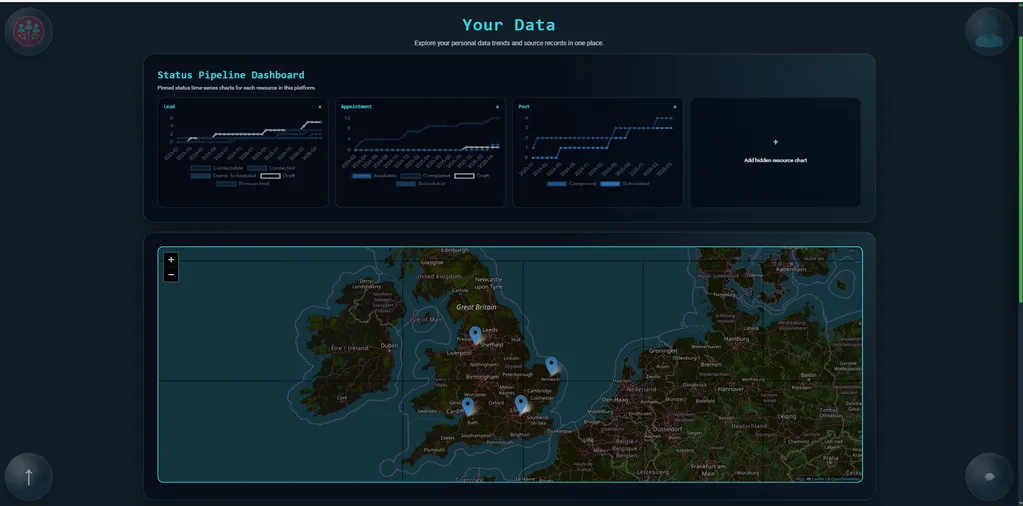
1) Start with an evidence review
Begin with what RunWAi is already showing you. Open the Home page to review current and ongoing events, then open the Overview page to look at trends, timelines, maps, and underlying data.
Look for these patterns:
- Objects sitting in Draft for too long.
- Leads stuck before Contactable or Researched.
- Posts piling up before Composed, Finalized, or Scheduled.
- Appointments without clear scheduled, complete, cancelled, or no-show outcomes.
- Objects with no owner, no parent, or vague names.
- Folders with many children but no clear desired status or next step.
Do not fix everything in the first pass. Pick the highest-friction workflow and improve that first.
2) Clean up the object model
Open the Library page and review the resource tiles for the workflow you are refining.
For each resource, ask:
- Are objects grouped under useful folders, or is everything flat?
- Do folder objects represent real campaigns, accounts, projects, segments, or sequences?
- Are there duplicate objects that should be merged or deleted?
- Are personal test objects mixed into the company workspace?
- Are completed or archived objects hidden when the team needs to focus on active work?
Use Move to put objects under the right parent and Delete only when an object is truly no longer needed. If an item belongs to company workflow, make sure it is handled in company mode rather than sitting in one person's private workspace.
3) Standardise names and descriptions
RunWAi relies on object context. If names and descriptions are inconsistent, search, recommendations, conversations, and AI-assisted progress all become weaker.
Use a simple naming convention for each resource:
- Leads: use the person or company name, plus a useful segment if needed.
- Posts: use the campaign, topic, and publishing intent.
- Messages: use the audience, channel, and position in the sequence.
- Appointments: use the meeting type, contact, and date or purpose.
Descriptions should explain the context, not repeat the name. For a lead, include why they matter, what is known, what is missing, and what the next useful action is. For a post, include the audience, point of view, desired outcome, and any claims that need research or fact-checking.
4) Tighten configurations and required fields
Configuration controls which attributes are visible and relevant. During refinement, check that each object is using the right configuration.
Examples:
- A company lead should use the Company configuration and include company name, website, industry, location, contact route, and lead source where possible.
- A person lead should use the Person configuration and include name, role, interests, pain points, goals, and follow-up history when known.
- A post should use the configuration that matches the output: Text, Image, PDF, Video, or Storyboard.
- A message folder should use Sequence or Routing only when it actually contains a multi-step flow.
If a field never affects decisions or automation, stop treating it as essential. If a field repeatedly blocks progress, make it part of your team's definition of ready.
5) Revisit the status lifecycle
Status should describe what is true now. It should not be used as a vague priority label, a comment, or a reminder.
For each workflow, write a one-line definition for every active status. For example:
- Draft means the object exists but is missing key details.
- Contactable means there is a reliable contact route.
- Researched means notes are strong enough to support outreach or content generation.
- Pending Approval means the work has been submitted and is waiting for a company decision.
- Closed - Won, Closed - Lost, Published, Complete, Cancelled, and No show are terminal outcomes.
Then review any object whose status does not match the definition. Update the status manually, add a comment if the reason matters, and let the next recommendation work from the corrected state.
6) Review ownership and approval routes
Ownership is part of the workflow, not just account metadata. Use Assign when a person is responsible for the next action. Use Submit when work should move into company review.
Check for these problems:
- Objects owned by someone who no longer works that stage.
- Company work still owned privately by the person who created it.
- Pending Approval objects without an approver or next decision.
- AI-assigned objects where no human knows what the AI is trying to reach.
Good ownership makes automation safer because RunWAi can move work to the right person or workspace when a status changes.
7) Tune defaults and inheritance
Resource settings let you reduce repetitive setup. In RunWAi, defaults can prefill new objects, and inheritance can copy selected attributes from a parent object to a child object.
Use defaults for values that should usually be the same when new objects are created, such as a default contact method, default post configuration, or starting status. Use inheritance when child objects should carry context from a parent, such as campaign, location, industry, product link, or linked message templates.
Be selective. Too much inheritance creates clutter and can carry stale context into new objects. A good rule is to inherit attributes that help the next action and leave everything else blank until it is known.
8) Adjust automations one rule at a time
Automation should follow a stable workflow. In RunWAi, automation can respond to a trigger such as a status change, check criteria, and then perform an action such as move, assign, create an object, or create a linked object.
Refine automations in small steps:
- Check the trigger: is the status change specific enough?
- Check the criteria: should the rule apply to all objects or only objects with a matching attribute?
- Check the action: should the object move, be assigned, create a child object, or create a linked object?
- Check the target: is the target folder, user, or linked resource still correct?
- Run one manual test object through the rule before relying on it for live work.
If an automation fires too often, add criteria or move the trigger later in the lifecycle. If it rarely fires, check whether the required status or attribute value is actually being used by the team.
9) Review AI assignment and desired status
AI assignment is most useful when the object already has enough context and a clear desired status. Assigning AI to a thin Draft object usually produces weaker results than assigning it to a well-described object with the right configuration and linked context.
When you assign AI to an individual object, RunWAi queues a progress job toward the desired status. When you assign AI to a folder or composite object, RunWAi can monitor or progress eligible child objects that have not reached the desired status yet.
During refinement, check:
- The desired status is a real next outcome, not several stages too far ahead.
- The object has enough description, attachments, linked messages, or research notes to support the AI task.
- Child objects under an AI-monitored folder actually belong in the same workflow.
- AI feedback or job history shows progress rather than repeated stalls.
If AI keeps stalling, do not just retry. Improve the object context, split the workflow into smaller status steps, or adjust the desired status to the next reachable stage.
10) Use the Resource Viewer as the quality check
The Resource Viewer brings together the evidence you need for refinement: actions, attributes, settings, navigation, collaboration, conversations, and status history.
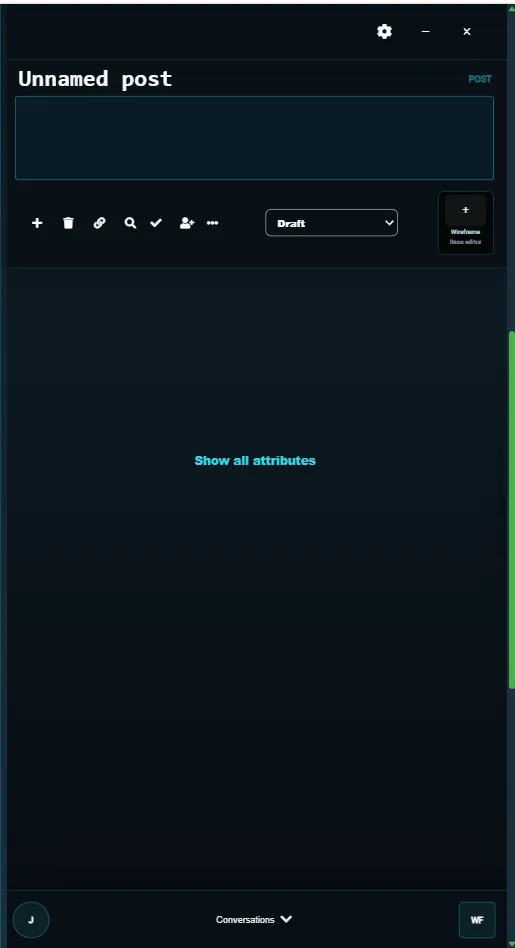
For any object that feels unreliable, review it in this order:
- Attributes: are the important fields complete and accurate?
- Status: does the current status match your definition?
- Navigation: is the parent-child structure correct?
- Collaboration: does the right person, company, or AI own the next step?
- Conversations: are key decisions recorded where the team can see them?
- Actions: is the next manual or automated action obvious?
11) Measure the impact over one or two cycles
After making changes, run the workflow for one or two real cycles before changing more. Watch whether the Home page becomes easier to act on, whether the Overview page shows fewer bottlenecks, and whether recommendations become more relevant.
Track a short change log outside the objects or in a shared planning object:
- What changed?
- Why did it change?
- Which workflow does it affect?
- What signal will show whether it worked?
This protects you from making several changes at once and then not knowing which one helped.
Refinement checklist
- Evidence has been reviewed on the Home, Library, Overview, and Resource Viewer screens.
- Object folders, parents, and ownership match the real workflow.
- Names and descriptions are consistent enough for teammates and AI to understand.
- Configurations expose the fields each object actually needs.
- Status definitions are clear and objects have been corrected where needed.
- Defaults and inheritance reduce repetitive setup without carrying stale data.
- Automations have specific triggers, criteria, actions, and targets.
- AI assignments have enough context and a reachable desired status.
- Changes are measured over real work cycles before further adjustments.
Read next: Partnership Schemes
Continue to Partnership Schemes.