



Resource Viewer
Open, review, and manage details in resource view.
The Resource Viewer is how you open and work on individual objects across the platform.
Whenever you select something, such as a lead, post, message, or appointment, it opens in the viewer.
Instead of taking you to a new page, it opens alongside your current view. This allows you to look at objects in detail and update them without losing your place.
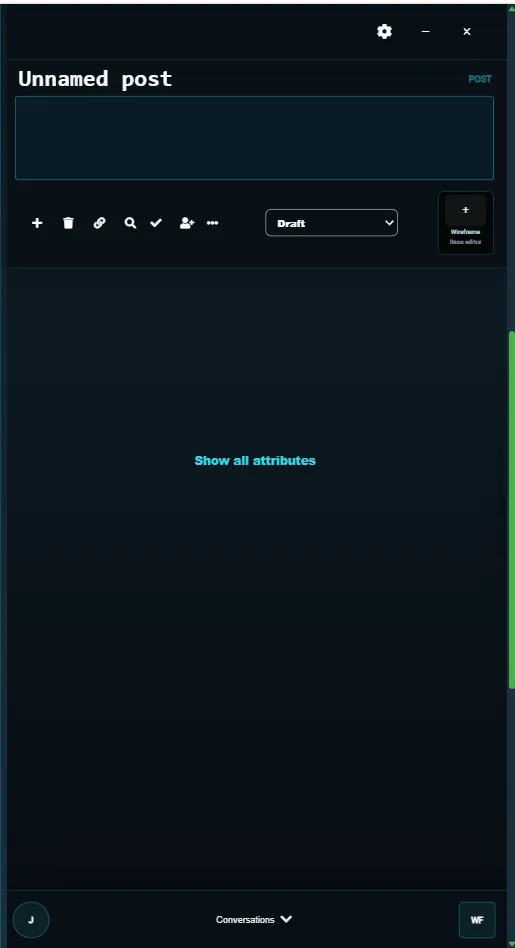
Header
At the top of the viewer, you’ll see the key details for the object.
This includes its name and where it sits in your structure. This helps you understand what you’re looking at, especially if the object is part of a larger hierarchy.
You’ll also see controls to minimise or close the viewer. Minimising keeps it open while freeing up space, and closing removes it completely.
Actions
Just below the header are the available actions.
By default, you’ll see:
- New (create a subobject)
- Delete
- Research
- Assign
- Submit
- More Actions
These allow you to move the object forward, manage it, or trigger additional steps.
The exact behaviour of each action depends on the type of object and your permissions, but they are always available in the same place for quick access.
Attributes
This section contains the main information for the object.
You’ll see fields like name, description, status, value, and any other details specific to that type of object.
You can edit these directly in the viewer, so you can update information as you work without needing to go anywhere else.
Settings
The Settings section controls how the object behaves.
Here, you can:
- Set the object as a folder, allowing it to contain subobjects
- Control visibility, defining who can see the object
- Choose the configuration, which determines which attributes are shown
For example, a Lead object can be set to either a company or a person configuration, so you only see the fields that are relevant.
Navigation
This section shows how the object connects to others.
You can view parent objects, related objects, and any subobjects linked to it. This makes it easy to understand where it sits and move between related work.
Collaboration
This section shows who is involved with the object.
You can see ownership, responsibility, and any assigned roles. It helps clarify who is working on the object and how it fits into team activity.
You can also monitor collaboration with AI agents here, giving you visibility over how work is being supported or progressed.
This is especially useful when working as part of a team.
Conversations
This section keeps communication tied to the object.
You can view and take part in discussions with your team directly on the object.
Status updates and key changes are also recorded here, so you can see how the object has progressed over time without needing to check elsewhere.
This keeps both communication and progress in one place.
Summary
The Resource Viewer is where you review and manage objects in detail.
It brings together actions, data, relationships, and communication in one place, so you can understand, update, and move work forward without breaking your flow.
Read next: Attributes
Continue to Attributes.