



Library Page
Organise resources, objects, folders, assignments, and automated pipelines from the Library.
The Library page is where your work is organised, accessed, and managed. It is where your resources live, including Posts, Leads, and Appointments.
While the Home page shows what needs your attention, the Library is where you build the structure behind the work: objects, folders, assignments, and automated pipelines.
Resource tiles
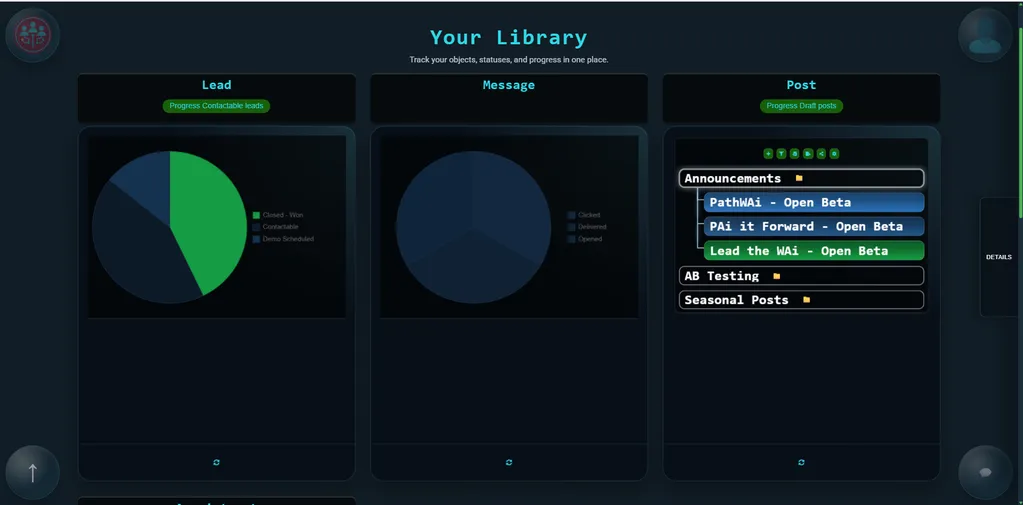
When you open the Library, your resources are displayed as tiles. Each tile represents a different type of object in the workspace.
Posts are used for content, Leads are used for sales opportunities, and Appointments are used for scheduled meetings. The Library gives you one place to see these resources, check their status, and open the objects inside them.
The front of a tile shows a summary of the resource, including progress across statuses. When you open or flip the tile, you can browse the objects inside that resource.
Hiding, showing, and layout
You can hide resource tiles when you want to focus on one area of work. Hiding a tile only changes what is visible on the page. It does not delete the resource or remove any data.
If you want to bring a hidden resource back, use the plus tile to add it back into view.
You can also adjust the Library layout. For example, three columns works well when several resources are visible, while two columns gives a resource tile more room when you are focusing on one workflow.
Post resource actions
Each tile has resource-level actions. These actions apply to the resource as a whole.
On the Post resource, the plus button creates a new post. Filter narrows what is shown. Import brings posts in from another source. Export takes post data out. Share lets you share the resource or view. Settings opens the configuration for that resource.
These controls are the main ways to manage a resource directly from the Library.
Recommendations
The Library can also show recommendations on a resource tile. These are suggested next steps from Chat Damon based on the current state of the work.
For example, if there are no posts yet, the Post resource might suggest discovering post topics. After you create a draft post, the recommendation can change to progressing draft posts, because the useful next action has changed.
This means you can either use the resource buttons directly or follow the recommendation and work conversationally.
Creating and opening objects
To create a post manually, use the plus action on the Post resource. This creates a new object inside the resource.
An object is a single item within a resource. In Posts, a Post object represents one piece of content. In Leads, a Lead object represents one person or business you are tracking.
When you select an object, its details open in the object pane. From there, you can rename it, add a description, review its status, and use object-level actions.
Resource actions and object actions
Resource actions apply to the whole resource. Object actions apply to the specific object you have opened.
Object actions include controls such as New, Delete, Connect, Research, Submit, Assign, and more actions. Some actions are general, while others depend on the resource. For example, Post objects can include publishing actions.
This split matters because it keeps resource management separate from the work you do on an individual object.
Assigning work to AI
Instead of writing a full post manually, you can assign the object to a person or to AI.
When you use Assign, you can choose who should take responsibility and set a desired status. For example, you might assign an Introduction post to Chat Damon and ask for it to reach Composed.
The desired status tells the assignee what outcome you want. Once assigned, the object shows that AI is working on it, and the work can continue in the background.
Folders and subposts
Objects can also act as folders by containing subobjects. In the video example, Commercial and Residential are created as Post objects and then used as folders for different types of content.
A folder should have enough description to guide the work inside it. For example, Commercial might use a professional tone for landlords, investors, and business clients, while Residential might use a friendly tone for buyers, sellers, and tenants.
When you add a subpost, you create a hierarchy. The folder gives context to the posts inside it, making the Library work more like a structured content pipeline.
Assigning folders and reviewing output
You can assign a whole folder to AI, not just an individual post. If a folder contains subposts, Chat Damon can become responsible for progressing the work inside that folder toward the desired status.
For example, assigning a Commercial folder with a desired status of Composed can ask the AI to work through the draft posts inside that folder. The generated output can include research notes, social content, and longer blog content depending on the post configuration and context.
You can review the generated content from the object pane, then decide whether to keep refining, move to another status, or publish.
Automation
Once a folder workflow is working, resource settings can help turn it into a repeatable pipeline.
For example, you can open Post settings, go to Automations, and create a scheduled rule that adds a new object to the Residential folder each day. If that folder is assigned to AI with a publishing goal, each new post can be picked up and progressed through the workflow.
Start with simple automations so the pipeline stays understandable and easy to review.
User and Company View
The Library changes depending on whether you are working as yourself or viewing the company workspace.
In user mode, you see your own objects. In company mode, you see objects across the shared workspace, depending on your access.
This makes it easy to move between personal and team-level work without changing pages.
Summary
The Library is not just a place to store objects. It is where you organise the structure of your work.
From the Library, you can manage resource tiles, use resource actions, follow recommendations, create and update objects, organise posts into folders, assign work to AI, and set up automation.
Read next: Overview Page
Continue to Overview Page.