




Chat
Use chat to accelerate lead handling and team communication.
Chat is always available, so you can ask questions, take action, and work with your data without switching between pages.
Instead of navigating through the platform, you can open chat and work through what you need in one place.
What you can do with chat
You can use chat to move work forward quickly.
For example, you might:
- Ask a question about your data
- Find a specific lead, post, or message
- Create or update items
- Explain how things work
- Navigate the interface
- Get suggestions on what to do next
Because chat is connected to your workspace, it can respond based on your actual data rather than giving generic answers.
Conversations
Everything happens inside conversations.
You can switch between conversations using the selector at the top, start a new one, or delete existing ones if they are no longer needed.
Each conversation keeps its context, so you can continue where you left off without repeating yourself.
Chat controls
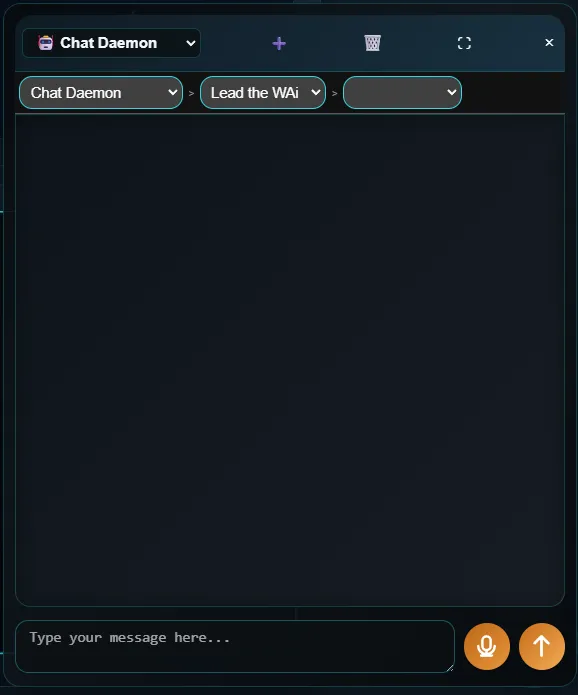
At the top of the chat, you’ll see a few controls:
- Room selector – switch between conversations
- New conversation – start a fresh chat
- Delete conversation – remove the current conversation
- Close chat – hide the chat panel
Below this is the configuration bar:
- AI selector – choose which AI you’re speaking to
- Platform selector – narrow the conversation to a specific platform
- Resource selector – focus on a specific resource
Finding and working with items
Chat can help you locate things quickly.
If you ask for something specific, like a lead or a post, it will show the relevant objects directly in the chat window. You can open them from there without searching manually.
Once you’ve found something, you can continue working with it as normal.
Taking action
Chat is not just for questions.
You can use it to create new objects, update existing ones, or move work forward.
Depending on your setup, some actions may ask for confirmation before they are completed.
Recommendation chats
Some conversations are started for you.
From the Home page, recommended events can open a chat. In the Library page, each resource can also trigger its own recommendations.
These start a guided conversation where the platform asks you questions.
You don’t need to think about what to ask. Simply answer the questions, and the system will guide you forward and help move that resource through its stages.
This is one of the main ways work progresses when there isn’t a clear next step.
Voice input
You can also interact with chat using your voice.
If the chat is closed, you can press and hold the chat button at the bottom of the screen to record a message. Recording continues while you hold it down.
You can also press and hold Ctrl + Space to record a voice message in the same way.
If the chat is already open, you can use the voice button within the chat window.
Once recorded, your message is transcribed and handled the same way as typed input.
Summary
Chat is a faster way to work with the platform.
It lets you ask questions, find information, and take action in one place, and can also guide you forward when you’re not sure what to do next.
Read next: Resource Viewer
Continue to Resource Viewer.