



Company Profile
The Company Profile is where you manage the shared workspace your team works in.
While your User Profile is personal to you, the Company Profile sits behind it and defines the structure everyone works within.
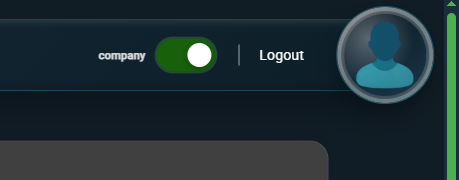
You can switch between your User Profile and Company Profile using the toggle in the top right. When the toggle is on, you’re viewing the platform in company mode.
The page is split into a few sections that control your company’s details, your team, and how access is handled.
Company Details
This section defines how your company appears across the platform.
You can edit your company name, tagline, industry, website, team size, branding, and description. These details are used in places like content, workflows, and general display.
The description is especially important. If you want the platform to understand your business properly, this is the place to explain what you do, who you serve, and how you operate. A clear description leads to more relevant content and suggestions across your workspace.
If anything changes, you can update it here by clicking Edit.
Members
This section shows who has access to your workspace.
Each person is listed along with their role. From here, you can remove members or change their role if needed.
You’ll mainly come back to this section when your team changes or when someone needs different access.
Roles
Roles control what people are allowed to do.
Each role has a set of permissions, such as viewing, editing, or managing different parts of the platform.
Only users with the right permissions can make changes to company settings or access company mode. If you don’t see certain options, it usually means your role doesn’t include them.
You can review existing roles or create new ones to match how your team works. This gives you control over access without needing to manage it person by person every time.
How company mode works
When you switch to company mode, you’re working within the shared workspace rather than as an individual.
This means actions affect the company view, not just your personal view. It’s mainly used when managing team settings, permissions, or shared information.
Most day-to-day work happens in user mode. You’ll usually switch to company mode when you need to make changes at a team or organisation level.
Summary
The Company Profile is where you manage the structure behind your workspace.
It defines your company details, who has access, and what they’re allowed to do. You won’t need it constantly, but it’s there whenever you need to make changes that affect the wider team.
Read next: Home Page
Continue to Home Page.