



Building a web app with Python, Flask, HTML, and JavaScript is an excellent way to create dynamic, interactive applications. Flask, a lightweight web framework, allows developers to build powerful backend systems, while HTML and JavaScript handle the frontend.
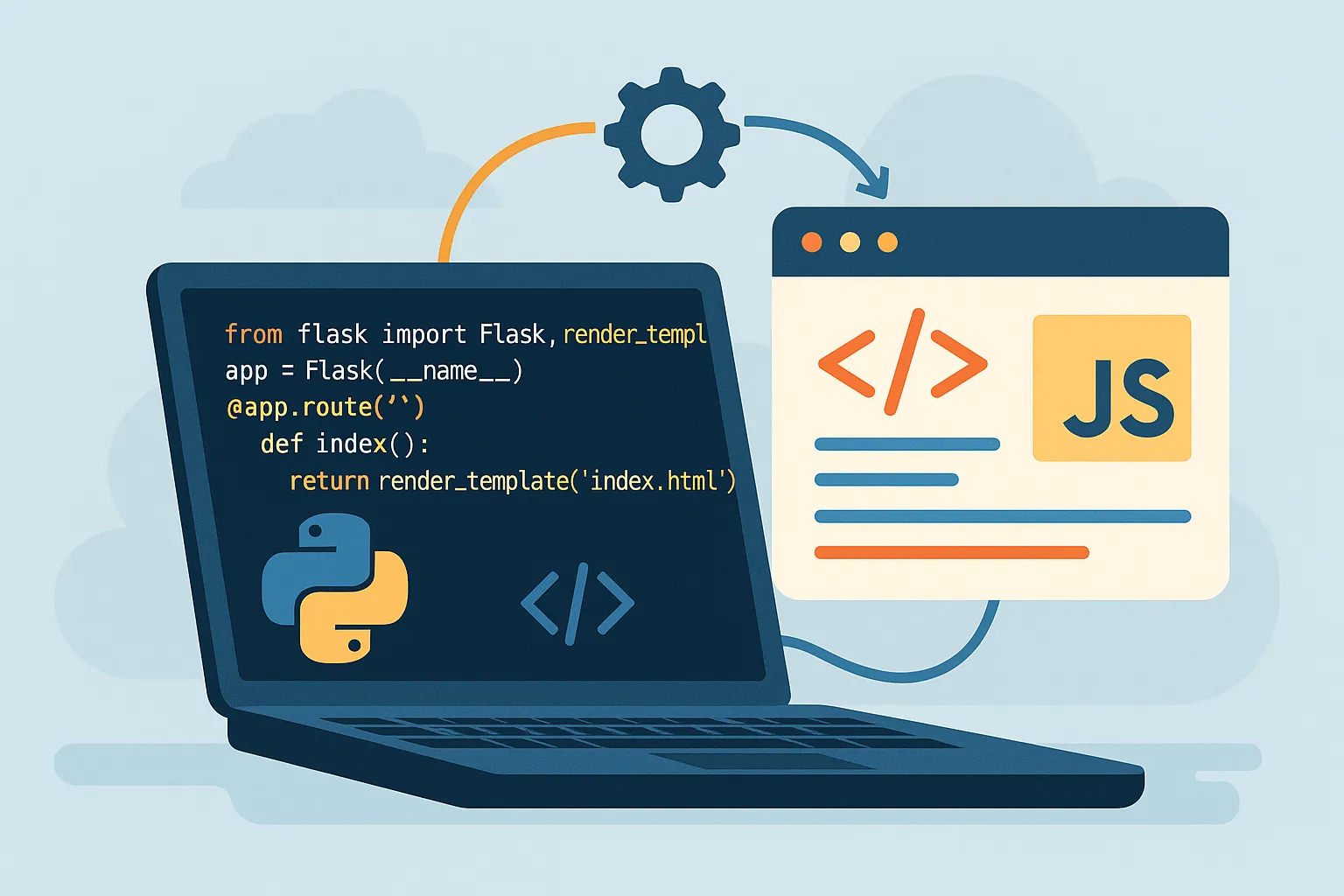
In this guide, we’ll walk through the step-by-step process of creating a simple web app using Flask for the backend and HTML/JavaScript for the frontend. Whether you’re a beginner learning to connect Python to the web or an intermediate developer exploring full-stack concepts, this tutorial gives you a practical foundation for real-world projects.
Why Use Flask for Web Development?
Flask is a micro web framework for Python that combines simplicity with flexibility. It’s lightweight, meaning it doesn’t come with unnecessary extras, allowing you to add only what you need. Flask gives you complete control over structure, integrations, and extensions — making it the perfect starting point for beginners and a favourite among professionals who want full customization.
In short, Flask is:
- Lightweight: It comes with only the essentials, so you decide what features to include.
- Flexible: It works seamlessly with your choice of frontend frameworks and libraries.
- Easy to Learn: Flask’s simplicity and readability make it ideal for new developers.
Prerequisites
Before getting started, make sure you have the following installed on your computer:
- Python 3.x
- Flask – Install with
pip install flask - Basic understanding of HTML, CSS, and JavaScript
Step 1: Setting Up Your Flask Project
Create a new project folder and navigate into it from your terminal:
mkdir flask_app
cd flask_app
Inside the folder, create a new Python file named app.py and add this code:
from flask import Flask, render_template

app = Flask(__name__)

@app.route('/')
def home():
    return render_template('index.html')

if __name__ == '__main__':
    app.run(debug=True)
Step 2: Creating the HTML Template
Now, create a folder named templates and inside it, make a file called index.html. This file will hold the frontend of your web app.
<!DOCTYPE html>
<html lang="en">
<head>
  <meta charset="UTF-8">
  <meta name="viewport" content="width=device-width, initial-scale=1.0">
  <title>Flask Web App</title>
  <link rel="stylesheet" href="{{ url_for('static', filename='style.css') }}">
</head>
<body>
  <h1>Welcome to Flask Web App</h1>
  <button onclick="fetchData()">Click Me</button>
  <p id="response"></p>
  <script>
    function fetchData() {
      fetch('/api/data')
        .then(response => response.json())
        .then(data => {
          document.getElementById('response').innerText = data.message;
        });
    }
  </script>
</body>
</html>
Step 3: Adding a Flask API Route
Modify your app.py file to include a simple API endpoint that sends data to the frontend:
from flask import Flask, render_template, jsonify

app = Flask(__name__)

@app.route('/')
def home():
    return render_template('index.html')

@app.route('/api/data')
def get_data():
    return jsonify({'message': 'Hello from Flask!'})

if __name__ == '__main__':
    app.run(debug=True)
Step 4: Running the Flask App
In your terminal, run:
python app.pyThen open http://127.0.0.1:5000/ in your browser to see your new Flask app running locally!
Step 5: Styling with CSS
Inside your project, create a static folder and add a style.css file to make your app look better:
body {
  font-family: Arial, sans-serif;
  text-align: center;
  margin-top: 50px;
}

button {
  background-color: #007BFF;
  color: white;
  padding: 10px 20px;
  border: none;
  cursor: pointer;
}

button:hover {
  background-color: #0056b3;
}
Step 6: Expanding with JavaScript
Instead of using jQuery, the Fetch API provides a modern, lightweight way to make API calls. It’s clean, simple, and widely supported.
<script>
function fetchData() {
  fetch('/api/data')
    .then(response => response.json())
    .then(data => {
      document.getElementById('response').innerText = data.message;
    });
}
</script>
Step 7: Deploying the Flask App
Once your app is running smoothly, you can deploy it online. Popular options include:
- Heroku – Quick setup for beginners.
- Render – Great for auto-deployment from GitHub.
- Google Cloud Run – Scalable and production-ready.
Best Practices for Flask Web Development
- Use Flask Blueprints to keep large projects organized.
- Implement error handling to improve reliability.
- Sanitize user input and enable HTTPS for security.
- Integrate a database such as SQLite or PostgreSQL to store user data.
FAQs
- Is Flask better than Django? Flask is lightweight and flexible, while Django includes many built-in tools.
- Can I use Flask for full-stack apps? Yes — it can handle backend logic, APIs, templates, and static files.
- How do I add authentication? Use Flask-Login for user management.
- Can Flask work with React or Vue.js? Absolutely — Flask can serve as a backend API for modern frontends.
- What’s the best way to host a Flask app? Platforms like Heroku, Render, or Google Cloud Run are ideal for Python apps.
Conclusion
Flask bridges the gap between backend and frontend development beautifully. With only a few files, you can create a fully functional web app that serves HTML, handles API requests, and responds dynamically with JavaScript. Once you’re comfortable, you can expand your app to include databases, authentication, and advanced APIs — all powered by Python.